
Our lab uses a Deltron Ultra 11 kW solar inverter (aka Voltronic Axpert Ultra). The inverter can connect to WiFi and send telemetry data to its cloud. However, we need it to operate autonomously, so we read the data from the RS232 port and upload it to our MQTT server.
Initially, it was a PHP script, and the inverter was connected to the server via an RS232-USB adapter, but the adapter’s reliability left much to be desired, so it was decided to transfer the functionality to the ESP8266.
What the device can do
- Polls the inverter with commands
QPIGS(network, output, load, battery, solar panels, temperature),QMOD(operating mode) andQPI(protocol version). - Reads the second solar panel input (
QPIGS2) for models with two MPPTs, such as the Axpert Ultra. The second input sensors only appear if the inverter responds to this command. - Publishes all data as a single JSON in MQTT, and the
online/offlinestatus via Last Will. - Supports MQTT Discovery: in Home Assistant, the device and all sensors appear automatically, without YAML.
- It has a web interface in English or Russian: status page, MQTT settings, polling interval, pins, and port speed.
- First setup of Wi-Fi via your own access point, like Tasmota.
- The status page displays how many bytes arrived from RS232 and the inverter’s response. This greatly simplifies troubleshooting wiring errors directly at the inverter, from your phone.
Tested on the Voltronic Axpert Ultra. Voltronic inverters share a common protocol, so the device should also work with other models with an RS232 to RJ45 port (Axpert, MKS, King, VM, and their clones under other brands).
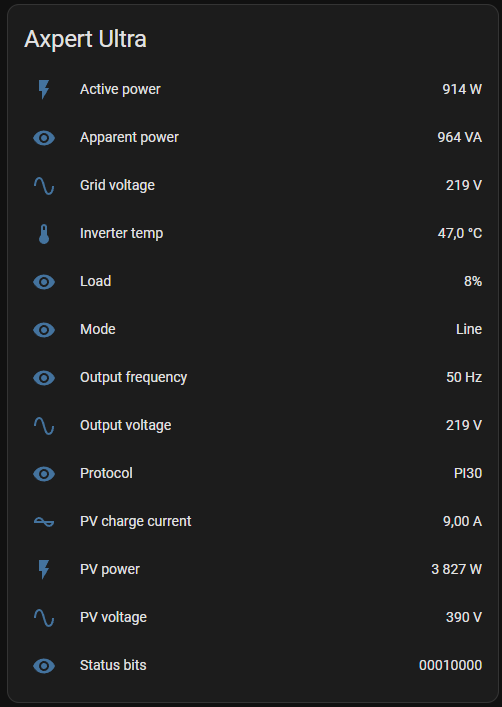
The screenshot shows a shortened version of the card, from which I’ve removed the parameters I don’t care about. There are 24 in total.
What you will need
| Detail | Note |
|---|---|
| NodeMCU v3 (ESP8266) | Any ESP8266 board will do. |
| RS232-TTL module on MAX3232 with DB9 connector | Specifically, the MAX3232: it operates at 3.3 V. MAX232 modules are rated for 5 V. |
| Cable with RJ45 | Native RJ45-DB9 inverter cable or homemade one |
| 5V power supply | Any USB charger |
Connection diagram
Инвертор RJ45 ──RS232── MAX3232 (DB9) ──TTL 3,3 В── NodeMCUMAX3232 module and NodeMCU
| NodeMCU | MAX3232 module |
|---|---|
| D1 (GPIO5), receive | TXD |
| D2 (GPIO4), transmission | RXD |
| 3V3 | VCC |
| GND | GND |
Important: Power the module only from 3.3V. At 5V, the TXD pin of the module will also be 5V, which is not what the ESP8266 inputs are designed for. The pins can be reassigned in the web interface, so if TXD and RXD on your module are labeled differently, you don’t need to resolder anything.
Inverter and module: male or female
On the Voltronic inverter’s RJ45 connector, pin 1 is data transmission (TX), pin 2 is data reception (RX), and pin 8 is ground. The output of one side always goes to the input of the other, and the output pin of the DB9 module depends on the connector on the module. Modules are sold with both connector options.
| RJ45 inverter | DB9 male (pins) | DB9 female connectors |
|---|---|---|
| 1 (TX inverter) | 2 | 3 |
| 2 (RX inverter) | 3 | 2 |
| 8 (GND) | 5 | 5 |
The module with a male connector is designed like a computer’s COM port, so the inverter’s native cable plugs directly into it. The module with a female connector is designed for connection to a computer, and pins 2 and 3 need to be crossed. A male-to-male null modem adapter will work with the native cable; a standard straight adapter won’t work.
This is where we got ourselves into trouble: the module with the female connector worked perfectly with the computer, but not a single byte came from the inverter. The reason is simple: both the module and the inverter are designed to be connected to the computer, so you can’t connect them directly. Simply swap the wires on pins 2 and 3. If in doubt, check with a voltmeter: the RS232 output maintains around -5 to -6 V relative to ground when idling, while the input maintains around zero.
Firmware and setup
The firmware is compiled in PlatformIO :
git clone https://github.com/ibuben/esp8266-voltronic-mqtt.git
cd esp8266-voltronic-mqtt
pio run -t upload- After flashing, the board sets up an access point called
voltronic-XXXX. Connect to it from your phone, and the setup portal will open automatically or at192.168.4.1. - Select a Wi-Fi network and enter the MQTT broker address, login, and password.
- The board will connect to the network, and the device with all sensors will appear in Home Assistant.
The rest can be configured in the board’s web interface: topics, polling interval (5 seconds by default), pins, and port speed. The interface is in English by default; Russian can be enabled in the settings. To reopen the Wi-Fi portal, hold the FLASH button on the board for 3 seconds.
What’s Coming to MQTT
At each polling cycle, the board sends one JSON fragment:
{
  "grid_voltage_v": 230.1,
  "output_frequency_hz": 49.9,
  "output_active_power_w": 410,
  "battery_voltage_v": 52.4,
  "battery_capacity_pct": 85,
  "pv_power_w": 0,
  "pv2_power_w": 0,
  "pv_total_power_w": 0,
  "mode": "Battery"
}
A full list of fields, LED indication, and a table of typical faults are available in the instructions on GitHub .