
Today in our IT lab, we have a Navien Deluxe One with an NR-40D Wi-Fi remote. It just so happens that when I purchased this «smart remote,» its native app was dead for all users in the CIS. Is it possible to make it work locally?
As it turns out, it’s possible! The only downside is that you need to redirect all smart remote control requests to your HA server via dnat or DNS spoofing. Your router needs to be able to do this.
Works for all boilers compatible with the Navien NR-40D remote control.
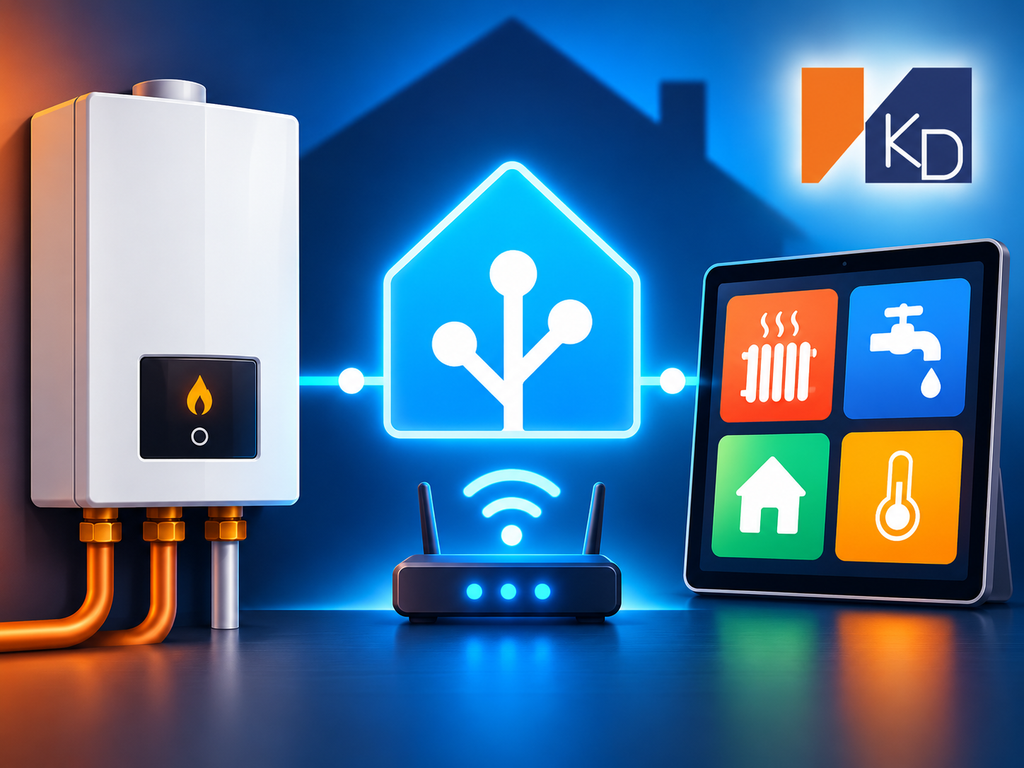
How does this work
The NR-40D remote control connects to the Navien cloud automatically using an address like rust2.naviensmartcontrol.com, TCP port 7000, or one of the backup ports 21000–21010. The protocol is simple: binary frames with a checksum, no encryption, and no verification of which server the remote control is communicating with. Therefore, the remote control can be tricked into thinking it’s a different server.
The integration itself is this server. It listens to the same ports on the Home Assistant host, accepts connections from the remote control, responds to its service requests, queries its status once a minute, and sends control commands. The router is needed for only one purpose: to route the remote control’s cloud traffic to Home Assistant instead of the internet.
All communication remains within the local network. If the internet goes down, boiler control from Home Assistant will continue to work.
Moreover, by deploying the remote control’s traffic to your local server, you automatically protect it from potential MITM attacks.
What appears in Home Assistant
The integration creates a single Navien NR-40D device with the following entities:
| Essence | What does it do? |
|---|---|
| Climate «Kotel» | On/off, room temperature, setpoint, «Away» preset |
| Heating switch | Turning the boiler on and off with one switch |
| Away Switch | Economy mode when no one is home |
| Room Setting Number | Desired room temperature: 10–40 °C |
| Number «Coolant Temperature» | The water temperature in the batteries for the «By coolant» mode is 40–80 °C |
| The number «DHW temperature» | Hot water temperature: 30–60 °C |
| Selecting «Heating mode» | «By room» or «By coolant» |
| Room Temperature Sensor | Remote control sensor readings, convenient for graphs |
| Mode sensor | Current boiler operating mode |
| Error sensor | Error code with explanation from the instructions (E003, E302, and others) |
| Flame indicator | Is the burner burning now? |
| «Connection with remote control» indicator | Is the remote control connected to the integration? |
| Outdoor Sensor Indicator | Is the outside temperature sensor connected to the boiler? |
Settings are accepted only in whole degrees — this is how the remote control itself is designed.
Integration, like a native server, allows the remote control to synchronize its clock.
Card for the panel
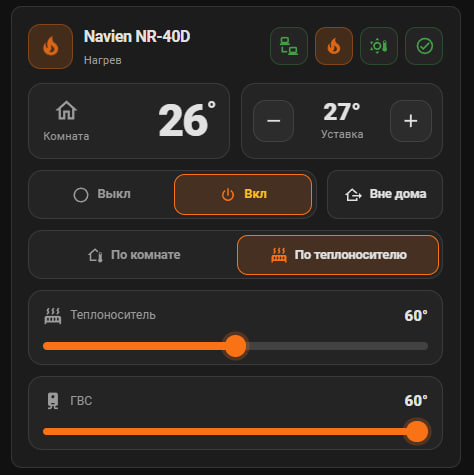
The integration comes with the custom:navien-nr40d-card card. On one screen: room temperature and setpoint with -/+ buttons, on/off, «Away» button, heating mode, coolant and DHW sliders. The header displays communication, flame, outdoor sensor, and error indicators; hovering over each displays a tooltip.
What you will need
- Home Assistant 2024.2 or later.
- HACS — for installation in a couple of clicks (can also be done manually).
- A router capable of setting up destination redirection (DNAT, «virtual server,» port forwarding) or a local DNS entry. (In my case, this is, as always, a Mikrotik.)
- NR-40D remote control and server with Home Assistant in the same local network.
Step 1. Installing the integration
- Open HACS → Integrations → menu ⋮ → User Repositories.
- Add address
https://github.com/ibuben/hass-navien-nr40d, type Integration . - Find Navien NR-40D , install and restart Home Assistant.
- Go to Settings → Devices and Services → Add Integration → Navien NR-40D .
Usually you don’t need to change anything in the setup wizard:
- The listening address is
0.0.0.0, that is, all network interfaces. - TCP ports —
7000,21001,21002,21003. If the router logs show that the remote control is also accessing other ports in the 21000–21010 range, add them, separated by commas. - The polling interval is 60 seconds. It can be set from 10 to 600.
Without HACS: Copy the custom_components/navien_nr40d folder from the repository to /config/custom_components/, restart Home Assistant and add the integration through the interface as well.
Immediately after installation, the «Connection with Remote» indicator will be off. This is normal: the remote is still communicating with the cloud. It needs to be redirected.
Step 2: Forward the remote to Home Assistant
The goal is to ensure that connections from the remote control to the Navien cloud are sent to the Home Assistant IP address. The protocol doesn’t need to be changed, only the destination address. There are two methods, and they can be combined.
- It’s assumed that the remote is already connected to your home WiFi. If not, connect to its AP following the manufacturer’s instructions. However, when you’re asked to add it to the app, instead of doing so, open the remote’s web interface in your browser (in my case, it was located at 192.168.43.1) and configure it to your WiFi network. This method eliminates the need to install the app on your phone.
Method 1. Destination Redirection (DNAT)
The most reliable option. Create a rule on your router: forward TCP connections from the remote’s IP address to ports 7000 and 21000–21010 to the Home Assistant IP address on the same ports. In the web interface, this may be called Destination NAT, Port Forward, Virtual Server, or «port forwarding.»
An important detail: the remote control and Home Assistant are usually on the same subnet. In this case, Home Assistant will respond directly to the remote control, bypassing the router, and the remote control will reject this response. Therefore, in addition to redirection, masquerade (Hairpin NAT) is also required for these same connections—this way, responses will be routed back through the router.
Example for MikroTik RouterOS. Replace 192.168.1.50 with the remote’s address and 192.168.1.10 with the Home Assistant’s address:
/ip firewall nat
add chain=dstnat src-address=192.168.1.50 protocol=tcp dst-port=7000,21000-21010 \
    action=dst-nat to-addresses=192.168.1.10 comment="Navien NR-40D -> Home Assistant"
add chain=srcnat src-address=192.168.1.50 dst-address=192.168.1.10 protocol=tcp \
    dst-port=7000,21000-21010 action=masquerade comment="Navien NR-40D hairpin"
The dstnat rule should be above other forwarding rules, if you have any. It’s best to assign a permanent IP address to the remote control in DHCP.
Method 2. Local DNS
If your router, AdGuard Home, or Pi-hole allow you to add a custom DNS record, specify the Home Assistant address for the names rust2.naviensmartcontrol.com and rust.naviensmartcontrol.com. The names may differ in other regions (for example, krst2… or ukst… in the same zone naviensmartcontrol.com)—the exact name can be found in the router’s DNS query log.
This method will only work if the remote control gets the DNS from your router. The remote control may cache the old address, so after changing it, reboot it by unplugging it for a minute.
If Home Assistant is in Docker
The container must listen for these ports from the host: either network mode host or port forwarding 7000 and 21000–21010. No special configuration is required in Home Assistant OS.
Once the remote control is connected, the «Connected to Remote Control» indicator will turn on, and after a few seconds the temperature, settings, and mode will appear.
Step 3. Card on the panel
The integration automatically registers the card file. After installation, restart Home Assistant and refresh the browser page, clearing the cache (Ctrl+F5). Then, open the panel → «Edit» → «Add Card,» find the Navien NR-40D , and select the boiler device.