
Is it worth explaining that storing passwords in plaintext is not only bad manners but also a risk of a host of problems if multiple (if not all) access rights to critical assets are stolen? Experience shows that it’s worth it.
I never cease to be amazed by colleagues who send me work access documents in the form of text files, judging by the internal formatting of which they have always been stored that way.
What surprises me even more is the skepticism towards my recommendations to use password managers with encryption.
Well, whatever! This article is for those who already love the cross-platform open-source password manager KeePass (though, to me, it’s more like KeepAss ;)) and, just like me, until recently couldn’t set up autofill on Linux the way it works so well on Windows.
KeePass2 on Debian/Ubuntu is installed directly from the native repository, so there are no hassles:
sudo apt install keepass2 
Find and launch KeePass2. Next, you’ll need to create a password container. There’s really nothing to explain here; it’s all pretty self-explanatory.
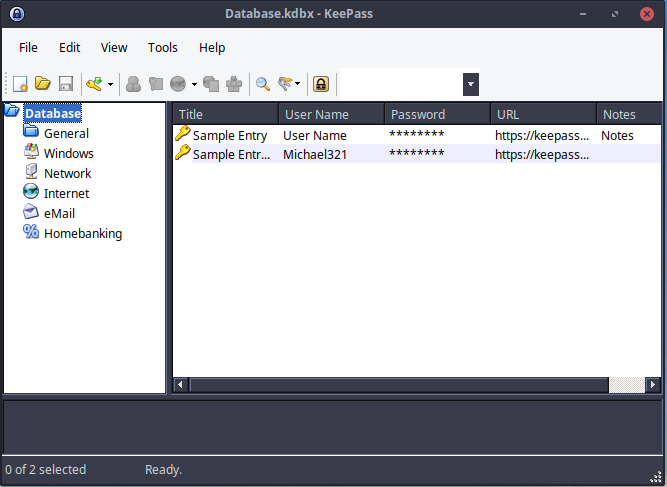
Unfortunately, KeePass looks quite strange if the dark theme is set on the system, but it’s not particularly annoying, overall it’s tolerable. ;)
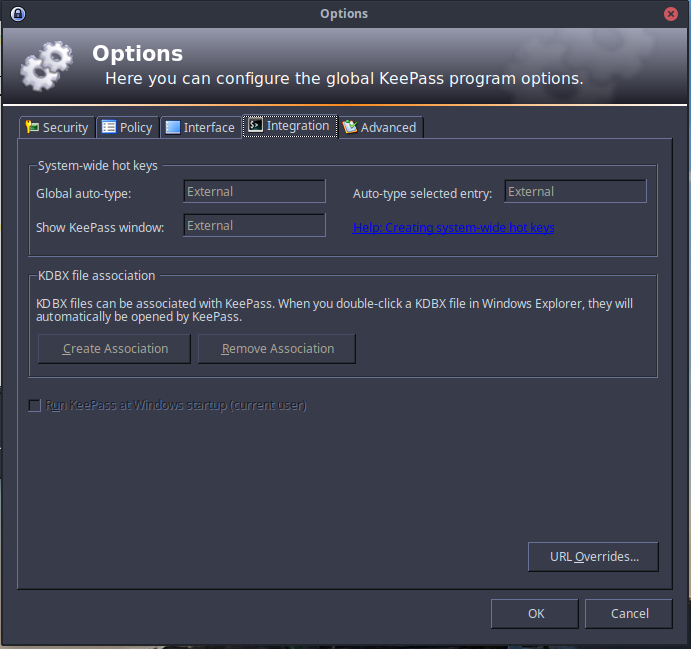
As you can see, in the settings where you can configure auto-type in the Windows environment, it is indicated that in Linux all these settings are made using external tools.
To do this we need to install xdotool
sudo apt install xdotool Next, head to the keyboard shortcuts settings. Where it’s located will depend on the shell you have installed, but I’m sure you’ll find it :)
Adding a new shortcut
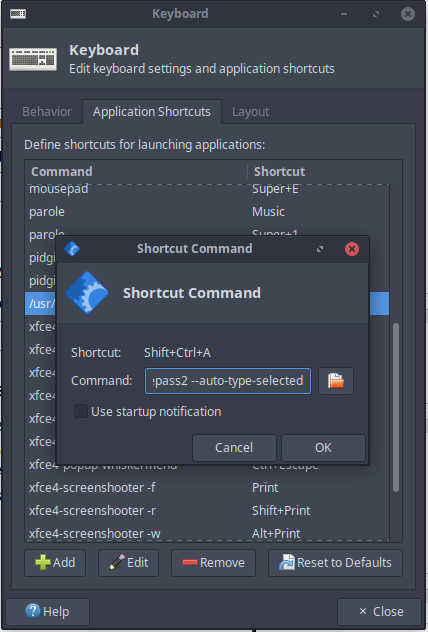
And here’s the most important part! The thing that had me scratching my head and unable to figure out why it wasn’t working… The documentation says the launch command should look like this:
mono /YourPathToKeePass/KeePass.exe --auto-type However, in this form, it doesn’t work at all! It works if you specify the following in the command line:
/usr/bin/keepass2 --auto-type-selected (The path to the application may vary across different distributions. If so, you can find it using whereis keepass2)
Now we register a keyboard shortcut for the new shortcut.
Select an account in KeePass, go to any window with an input field and test it by pressing the specified combination.
If everything was done correctly, KeePass will process the click and automatically fill in the form/input field, in accordance with the scenario specified in the selected entry.
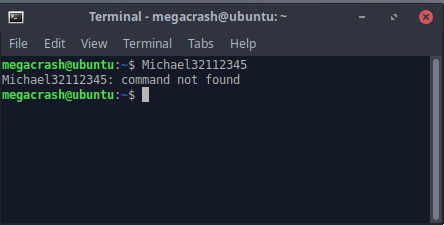
P.S.
The main thing is that the password is not «rm -rf /» ;))